Showing posts with label Utilities. Show all posts

Saturday, August 31, 2019

Effective unlocking of gapped files under Windows 10, 8.1, ...!
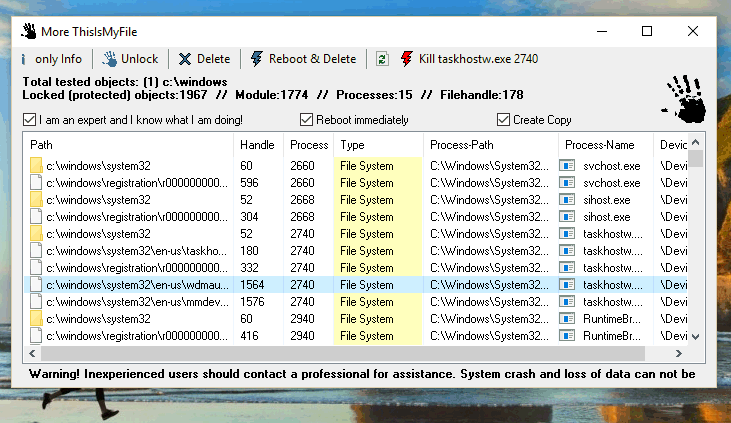
ThisIsMyFile 2.84

A small and effective program for unlocking and / or deleting locked or protected files!

This is a very aggressive program that, without ifs and buts, deprives the affected open files from the appropriate program and performs the required action.If it is started in admin mode, it may be necessary to know what you do. If not it Leads to operating system instabilities!

Source : http://www.softwareok.com/
Download

Monday, August 26, 2019

Windows Update Blocker main
Windows Update Blocker 1.4

Windows Update Blocker is a freeware that helps you to completely disable or enable Automatic Updates on your Windows system , with just a click of the button . This utility is portable, which means that you are no longer required to go through the installation process and no leftovers will remain on the HDD after its removal. if you place the program file to an external data device, you make it possible to take Windows Update Blocker everywhere with you and use it on any computer you come in contact with, who has things configured just right, and doesn’t want to take the chance that an update might mess up their system. This utility is for that person.

Source : https://www.sordum.org/

Friday, August 23, 2019

Windows Update Blocker main
Windows Update Blocker 1.4
Windows Update Blocker is a freeware that helps you to completely disable or enable Automatic Updates on your Windows system , with just a click of the button . This utility is portable, which means that you are no longer required to go through the installation process and no leftovers will remain on the HDD after its removal. if you place the program file to an external data device, you make it possible to take Windows Update Blocker everywhere with you and use it on any computer you come in contact with, who has things configured just right, and doesn’t want to take the chance that an update might mess up their system. This utility is for that person.

Source : https://www.sordum.org

Wednesday, August 21, 2019

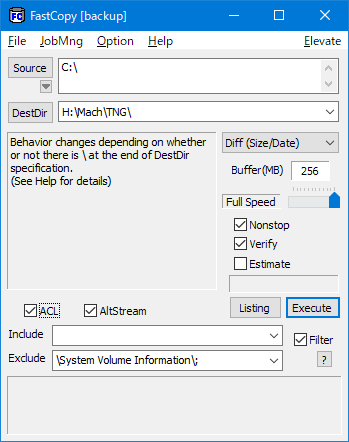
FastCopy 3.84 copy/delete tool
  1. FastCopy is the Fastest Copy/Backup Software on Windows
  2. It supports UNICODE and over MAX_PATH (260 characters) file pathnames.
  3. Because it uses multi-threads for Read/Write/Verify, Overlapped I/O, Direct I/O, so it brings out the best speed of devices.
  4. It supports Include/Exclude filter like a UNIX wildcard.
  5. It runs fast and does not hog resources, because MFC is not used. (Designed using Win32 API and C Runtime only)
Source : https://fastcopy.jp
Download
Installer from WindowsForest
Installer from Local

Tuesday, August 20, 2019


X-Mouse Button Control
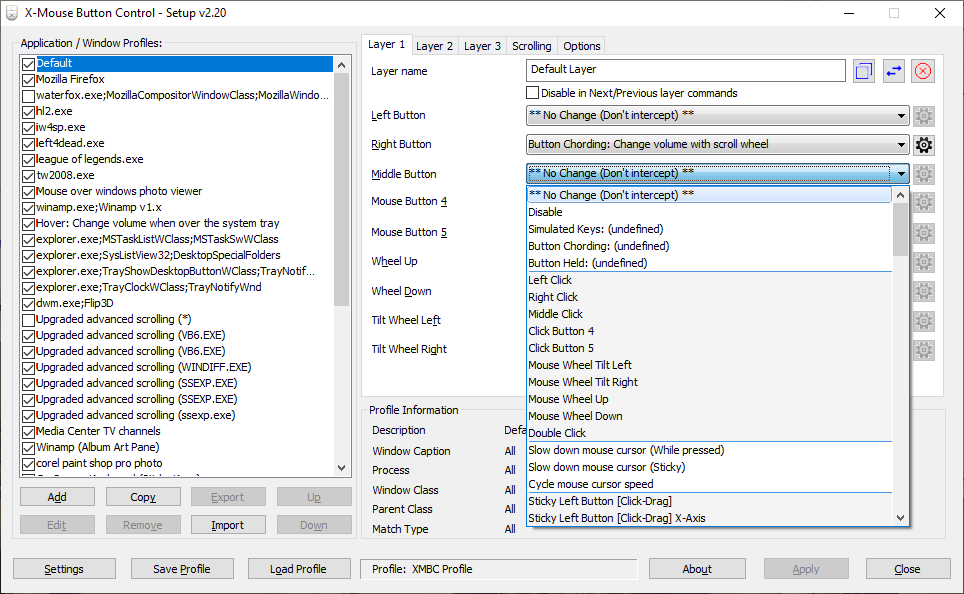
X-Mouse Button Control is a free tool for Windows that allows you to re-configure and expand the capabilities of your mouse.

Download:

Latest version

Portable version mirror

mirror [ Whats new? | Language Packs | Awards ]


Please be aware that X-Mouse Button Control is a hobby project.

It is not affiliated with any mouse or trackball device manufacturer.

While I can not guarantee to provide any level of support, I try my best, free time permitting!

Overview:

XMouse Button Control (XMBC) allows you to create application and window specific profiles. This in turn, allows you to re-configure your mouse behaviour for individual applications or windows. For each profile you can also configure up to 5 'layers' of different button configurations which you can switch between using hot-keys or mouse buttons.

By default, profiles are automatically activated as the mouse moves over the defined window or application.

This has many uses, for example:
Changing the behaviour of the mouse over certain windows, such as making the mouse wheel change volume when hovering over the system tray or you-tube video.
In games which do not natively support the extended, 4th and 5th mouse buttons, you can map keys to each button.

XMBC allows you to change the behaviour of the mouse buttons and scroll wheel. The extensive list of functions available to map to your mouse buttons includes options such as:
Send any keys using the 'simulated keystrokes' editor
Cording (shifting/combining) buttons perform different actions
Launch any windows application
Clipboard control (Copy/Cut/Paste)
Media control (Play/Pause/Stop/Volume/Mute etc.)
Capture screen (or active window) image to clipboard
Click-Drag [Sticky buttons/keys]
Various support for specific Windows operating systems, such as Flip3D in Vista, ModernUI/Metro in Windows 8 and Virtual Desktops in Windows 10!
And much, much more!

For more information about using and configuring X-Mouse Button Control, please check out the new user guide (mirror).

X-Mouse Button Control currently supports Windows XP, 2003, 2003 R2, Vista, 2008, 2008 R2, 7, 8, 2012, 8.1, 2012 R2 and 10.

It was originally designed to run natively on x64 editions of Windows but it is fully supported on 32bit editions too! The installation determines what version is required (x64 or x86) automatically during installation.


Installation/Upgrade Information:


The installer will automatically close an existing instance of XMBC so you do not need to close or uninstall an old version before installing the latest.

XMouse Button Control is configured to run automatically when you log on to Windows.

This can be changed using MSConfig or the start-up tab in Task Manager on Windows 8 or later.

Requirements:

A mouse and driver that supports up to 5 buttons.
NOTE: If your mouse has 5 buttons but the 4th and 5th buttons don't do anything in by default - then XMBC may not be for you. This software relies on the driver to send the default 4th and 5th mouse button messages which usually default to BACK/NEXT in browsers and other programs. Having said that you can still remap the standard 2 buttons and scroll wheel.
A compatible version of Microsoft Windows.
X-Mouse Button Control supports all 32bit (x86) and 64bit (x64) editions of Windows from Windows XP to 10, including Windows Server editions!


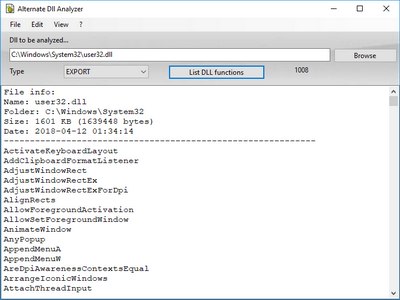
Alternate DLL Analyzer

A simple application for displaying and extracting the available function names of a DLL-file. A DLL-file itself may contain several functionalities that can be used by multiple programs at the same time. This program is freeware.

The application also offers the possibility to numerate the function names as well as displaying the image-header, common file information, a checksum and the version-info of the selected DLL-file.

It can also be called with parameters from command line. This program requires the .NET-framework 2.0 (already included in operation system since Windows Vista).

Changes in this version:
- Polish translation added


Versionnumber: 1.750
Filesize: 599.06
Date: 18.08.2019
MD5 value: c577f47826b7bb34511313f5a784b287
Supported operating systems: 98, Me, 2000, XP, Server 2003, Vista, Server 2008, 7, 8, 8.1, 10
Languages included: English, German, Danish, French, Greek, French, Italian, Chinese, Spanish, Arabic, Swedish, Korean, Russian, Japanese, Czech, Turkish, Hungarian, Polish

Source : http://www.alternate-tools.com/
Download
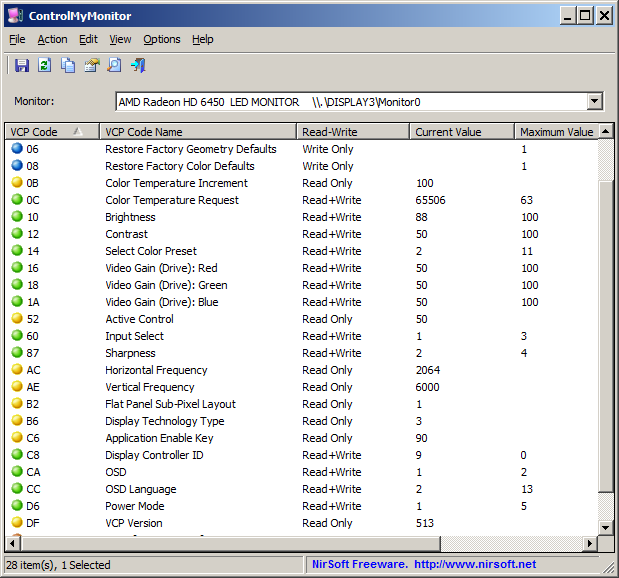
ControlMyMonitor v1.17 

Description

ControlMyMonitor allows you view and modify the settings of your monitor (Also known as 'VCP Features'), like brightness, contrast, sharpness, red/green/blue color balance, and more... You can modify the monitor settings from the GUI and from command-line. You can also export all settings of your monitor into a configuration file and then later load the same configuration back into your monitor.


System Requirements
Any version of Windows, starting from Windows Vista and up to Windows 10.
Hardware that supports DDC/CI.
Source : http://www.nirsoft.net/
Download
Supercopier4

Ultracopier is free and open source software licensed under GPL3 that acts as a replacement for files copy dialogs. Main features include: on-error resume, error/collision management.

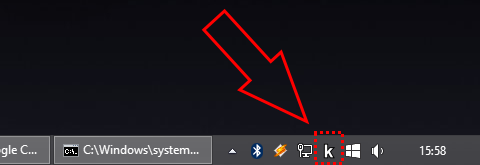
|project|'s icon in the system's tray
Keypirinha - fast launcher for keyboard ninjas on Windows

What is Keypirinha?


Keypirinha is a fast launcher for keyboard ninjas on Windows.

Features:
Quickly find and launch plethora of items like applications, files, bookmarks, URLs, sessions (PuTTY, WinSCP, FileZilla), registry keys, …
Launch a search on any configured website or online dictionary
Language translations on-the-fly
Evaluate mathematical expressions
Base conversion of numbers
Search your environment variables
Launch a copied URL directly (http, mailto, skype, …)
Split a URL and convert its arguments to JSON
Switch to a running application by name
Hash a string (CRC32, MD5, SHA, …)
Generate random UUIDs, passwords, bytes sequences
Naturally associate a keyword to a specific item
Machine-specific and/or user-specific configuration in separate config files
… and more, see Shipped Packages and Third-Party Packages

Properties:
Plugin-oriented architecture (C++ at its core, Python3 for its plugins)
File-driven configuration
Lightning fast
Fairly small memory footprint
Battery friendly
Customizable GUI (colors, fonts, toggling and positioning of elements)
Steep but rewarding learning curve
Freeware, no nag screen, no time limit, no ads

You can think of Keypirinha as an alternative to Launchy and a cousin of Alfred.

See the First steps chapter for more information.

Source : http://keypirinha.com/

Download v2.24 

Monday, August 19, 2019

Ultracopier

Ultracopier is free and open source software licensed under GPL3 that acts as a replacement for files copy dialogs. Main features include: on-error resume, error/collision management.

Source : https://ultracopier.first-world.info

FBackup Program
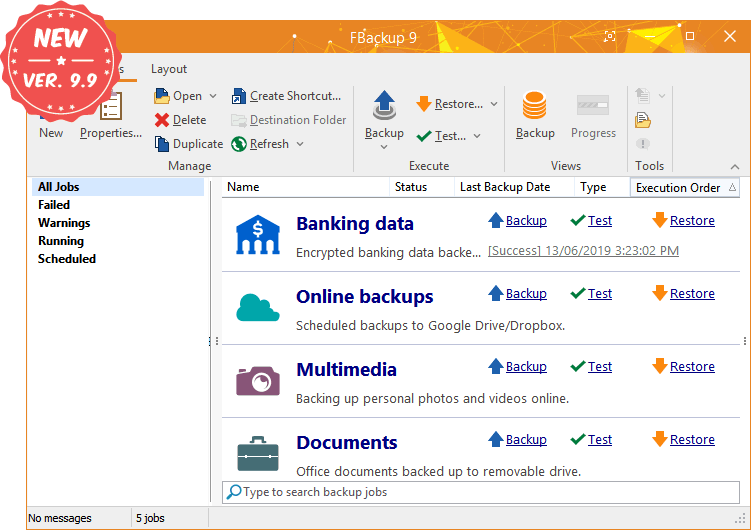
FBackup
FBackup has a simple interface and guides you through the process of defining a backup job using a friendly wizard that asks you:
  • Where do you want to store the backup (the destination).
  • What do you want to backup (the sources).
  • How do you want to run the backup (using full backup that zips the files, or mirror backup that doesn't zip them).
  • When do you want to run the backup (you can schedule it to run automatically or run it manually).
Once a backup job is defined, you can run it manually by pressing the Backup button (or F6), or if you add a scheduler it will run automatically. FBackup can easily back up sources from local drives (including USB connected drives) to destinations such as USB/Firewire connected devices or mapped network locations. It creates either standard zip files (when using "full backup"), or exact copies of the original sources without any compression (using "mirror backup"). The best thing about this freeware backup software is that it protects your data for free.

Source : https://www.fbackup.com/

GPU-Z is a lightweight system utility designed to provide vital information about your video card and graphics processor.

Main Features

  • Supports NVIDIA, AMD, ATI and Intel graphics devices
  • Displays adapter, GPU and display information
  • Displays overclock, default clocks and 3D clocks (if available)
  • Includes a GPU load test to verify PCI-Express lane configuration
  • Validation of results
  • GPU-Z can create a backup of your graphics card BIOS
  • No installation required, optional installer is available
  • Support for Windows XP / Vista / Windows 7 / Windows 8 / Windows 10 (both 32 and 64 bit versions are supported)
  • .. and yes, the author of CPU-Z has granted us permission to use a name similar to his product. Thanks Franck.

Enterprise Licensing

GPU-Z is free to use for personal and commercial usage. However, you may not redistribute GPU-Z as part of a commercial package.
We also offer a GPU-Z SDK, which is provided as simple-to-use DLL with full feature set. Commercial support and customization options are available, please contact us for details.
Application ScreenshotApplication ScreenshotApplication Screenshot

Main Features

  • Supports NVIDIA, AMD, ATI and Intel graphics devices
  • Displays adapter, GPU and display information
  • Displays overclock, default clocks and 3D clocks (if available)
  • Includes a GPU load test to verify PCI-Express lane configuration
  • Validation of results
  • GPU-Z can create a backup of your graphics card BIOS
  • No installation required, optional installer is available
  • Support for Windows XP / Vista / Windows 7 / Windows 8 / Windows 10 (both 32 and 64 bit versions are supported)
  • .. and yes, the author of CPU-Z has granted us permission to use a name similar to his product. Thanks Franck.

Enterprise Licensing

GPU-Z is free to use for personal and commercial usage. However, you may not redistribute GPU-Z as part of a commercial package.
We also offer a GPU-Z SDK, which is provided as simple-to-use DLL with full feature set. Commercial support and customization options are available, please contact us for details.
RegistryChangesView v1.21


Description

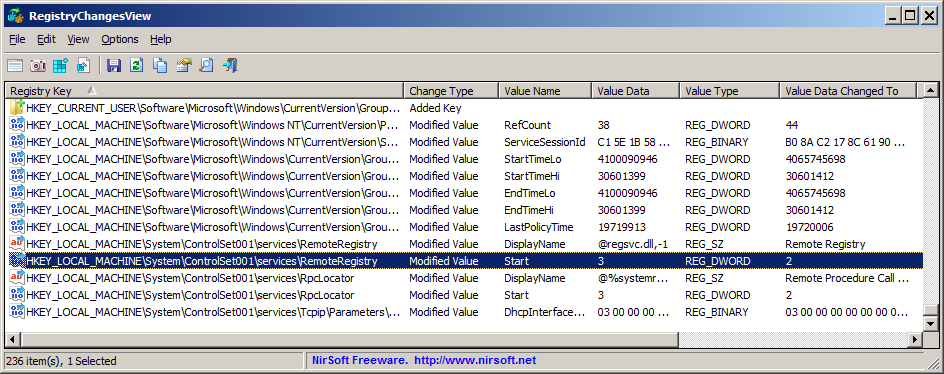
RegistryChangesView is a tool for Windows that allows you to take a snapshot of Windows Registry and later compare it with another Registry snapshots, with the current Registry or with Registry files stored in a shadow copy created by Windows. When comparing 2 Registry snapshots, you can see the exact changes made in the Registry between the 2 snapshots, and optionally export the Registry changes into a standard .reg file of RegEdit. 

System Requirements

This utility works on any version of Windows, starting from Windows XP and up to Windows 10. Both 32-bit and 64-bit systems are supported.

Versions History

  • Version 1.21:
    • Added 'Case Sensitive' option to the Quick Filter window.
  • Version 1.20:
    • Added more command-line options, which allow you to compare Registry snapshots and export the result to .reg file or csv/tab-delimited/xml/html file.
  • Version 1.15:
    • Added new columns: 'Data Length' and 'Data Length Changed To'.
  • Version 1.12:
    • Fixed bug: RegistryChangesView failed to handle large values (with more than 16,344 bytes) properly and this problem also caused RegistryChangesView to crash on some systems.
  • Version 1.11:
    • Added /cfg command-line option to start RegistryChangesView with the specified config file.
  • Version 1.10:
    • RegistryChangesView now consumes less memory when loading large amount of items.
  • Version 1.08:
    • Fixed bug: RegistryChangesView generated .reg file incorrectly when the value names had '\' or '"' characters.
    • Fixed bug: In some circumstances, RegistryChangesView omitted the key name of the first .reg file value.
  • Version 1.07:
    • Fixed bug: RegistryChangesView exported REG_EXPAND_SZ values incorrectly.
  • Version 1.06:
    • Fixed bug: The browse button on the 'Create Registry Snapshot' window didn't work.
  • Version 1.05:
    • Added /CreateSnapshot command-line option for creating Registry snapshot from command-line.
  • Version 1.01:
    • Fixed bug: Under certain conditions, RegistryChangesView skipped half of subkeys or crashed while reading Registry key that had many subkeys.
  • Version 1.00 - First release.


Examples for useful things you can do with this tool

  • You can create a Registry snapshot before installing a new software and then after the installation is completed, compare this Registry snapshot with the current Registry and see all Registry changes made by the installer (Be aware that you'll also see some changes made by Windows or other programs in the same time). If there are Registry changes that you don't like, you can generate a .reg file to revert back the changes.
  • If you make a change in Windows configuration from the GUI of Windows and you want to see how to make this change in the Registry, simply create a Registry snapshot before making the config change and then after the configuration change, compare this Registry snapshot with the current Registry and optionally generate a .reg file that makes this configuration change.
  • If there is unwanted change in the Registry of your system but you don't have any previous snapshot, you can compare the current Registry with a shadow copy created by Windows and try to locate the unwanted Registry changes.
  • You can also use this tool as a simple way to backup the Registry. The snapshot created by RegistryChangesView simply contains Registry hive files with the same name as the original one (ntuser.dat, SYSTEM, SOFTWARE, and so on...)

Start Using RegistryChangesView

RegistryChangesView doesn't require any installation process or additional DLL files. In order to start using it, simply run the executable file - RegistryChangesView.exe 
After running RegistryChangesView, the main options window is displayed, which allows you to choose 2 Registry snapshots to compare. For every snapshot , you can choose one of the following data sources: 'Current Registry', 'Saved Registry Snapshot', and 'Shadow Copy'. You can choose any combination you want, as long as 'Data Source 1' is not identical to 'Data Source 2'. For example: you can choose to compare the Registry of 2 different shadow copies, compare a shadow copy with current Registry, compare a saved Registry snapshot with current Registry, compare a saved Registry snapshot with another saved Registry snapshot, and so on...
If you want to generate a new Registry snapshot, simply choose 'Saved Registry Snapshot' in the data source combo-box and then click the 'Create Registry Snapshot' button. In the 'Create Registry Snapshot' window choose the folder to save the Registry Snapshot, click the 'Create Snapshot' button, and wait a few seconds to create the snapshot. You can also create a new Registry snapshot from the main window by pressing F8 (File -> Create Registry Snapshot).
After choosing the 2 Registry data sources to compare , you should also set the following options:
  • Direction: This field determines how the 2 Registry snapshots are compared. For example: if the direction you choose is 'Registry Data Source 1 => Registry Data Source 2', every Registry key or value that exists on the second snapshot but doesn't exist on the first snapshot will be displayed as 'Added Key' or 'Added Value'. But if you choose the opposite direction ('Registry Data Source 2 => Registry Data Source 1'), every Registry key or value that exists on the second snapshot but doesn't exist on the first snapshot will be displayed as 'Removed Key' or 'Removed Value'.
    The direction field also affects the way that .reg file is generated ('Export Selected Items To .Reg File' and 'Copy As .Reg File Format' options). if the direction you choose is 'Registry Data Source 1 => Registry Data Source 2', the generated .reg file will make the changes from snapshot 1 to snapshot 2. if the direction you choose is 'Registry Data Source 2 => Registry Data Source 1', the generated .reg file will make the changes from snapshot 2 to snapshot 1.
  • Hives to compare: Allows you to choose which Registry hives to compare. For example, If you only want to see the Registry changes on HKEY_CURRENT_USER, you should select the 'HKEY_CURRENT_USER' and 'HKEY_CURRENT_USER\Software\Classes' hives and deselect all others.
After choosing all option, click the 'Ok' button. RegistryChangesView will compare the 2 Registry data sources you chose and the result will be displayed on the main window.

Some Important Remarks

  • By default, the SAM and SECURITY Registry hives are not selected for comparison and for generating new Registry snapshots. You can choose these 2 Registry hives if you need to compare them, but you should be aware that there is a security risk: These Registry hives contain encryption keys and password hashes of your system and if you leave a Registry snapshot with SAM/SECURITY hives that can be accessed by a non-admin user, hacker that finds these files on your system might be able to use them for penetrating your system.
  • When you choose 'Current Registry' as one of the data sources, RegistryChangesView generates a temporary Registry snapshot on %temp%\TempRegSnapshotX folder (X = numeric value) and deletes it after the Registry comparison process is finished.
  • The Registry snapshot created by RegistryChangesView is just a folder that contains the Registry files with their original name. If you have a copy of Registry hives and you want to use them as a snapshot, simply copy them into a separated folder with their original filename ( Software, System, ntuser.dat, UsrClass.dat ) and choose this folder as a Registry snapshot.

Columns Decsription

  • Registry Key: Full path of the Registry key.
  • Change Type: Type of Registry change: Added Key, Removed Key, Added Value, Removed Value, Modified Value.
  • Value Name: Name of the Registry value (Relevant only when the 'Change Type' is 'Added Value', 'Removed Value', or 'Modified Value')
  • Value Data: The content of Registry value (Relevant only when the 'Change Type' is 'Added Value', 'Removed Value', or 'Modified Value'). If the 'Change Type' is 'Modified Value' - this columns shows the original value (before the change) and the 'Value Data Changed To' column shows the value after the change.
  • Value Type: Type of Registry value (REG_SZ, REG_DWORD, REG_BINARY, and so on...). If the 'Change Type' is 'Modified Value' - this columns shows the original value type (before the change) and the 'Value Type Changed To' column shows the value type after the change.
  • Value Data Changed To: The content of Registry value after the change (Relevant only when the 'Change Type' is 'Modified Value').
  • Value Type Changed To: The type of Registry value after the change (Relevant only when the 'Change Type' is 'Modified Value').
  • Key Modified Time 1: The timestamp of the specified Registry key in the first snapshot.
  • Key Modified Time 2: The timestamp of the specified Registry key in the second snapshot.

Generating .reg file

RegistryChangesView allows you to generate a .reg file that can be used to import with RegEdit tool of Windows. 
There are 2 options to generate .reg file: (Both options work on selected items, you can press Ctrl+A to select all items)
  • Export Selected Items To .Reg File (Ctrl+E): Exports into a .reg filename that you choose.
  • Copy As .Reg File Format (Ctrl+R): Generates text in .reg file format into the clipboard.
The .reg file is generated according to the 'Direction' field in the Options window. if the Direction is 'Registry Data Source 1 => Registry Data Source 2', the generated .reg file will make the changes from snapshot 1 to snapshot 2. if the Direction is 'Registry Data Source 2 => Registry Data Source 1', the generated .reg file will make the changes from snapshot 2 to snapshot 1.

Quick Filter

If you want to see only Registry keys or values that contain specific strings, you can press Ctrl+Q (View -> Quick Filter), and then in the quick filter text-box type the desired filter string.

Command-Line Options

/cfg <Filename>Start RegistryChangesView with the specified configuration file. For example:
RegistryChangesView.exe /cfg "c:\config\rcv.cfg"
RegistryChangesView.exe /cfg "%AppData%\RegistryChangesView.cfg"
/sreg <Filename>Save the Registry comparison result into a .reg file.
/stext <Filename>Save the Registry comparison result into a regular text file.
/stab <Filename>Save the Registry comparison result into a tab-delimited text file.
/scomma <Filename>Save the Registry comparison result into a comma-delimited text file (csv).
/shtml <Filename>Save the Registry comparison result into HTML file (Horizontal).
/sverhtml <Filename>Save the Registry comparison result into HTML file (Vertical).
/sxml <Filename>Save the Registry comparison result into XML file.
/CreateSnapshot [Folder]Creates a Registry snaphot in the specified folder. If the folder doesn't exist, RegistryChangesView will create it. By default the snapshot will be created according to the last settings, but you can change it by using the commands below ( /CreateSnapshot.SoftwareHive , /CreateSnapshot.SystemHive and so on...)

/CreateSnapshot.SoftwareHive [0 | 1]
/CreateSnapshot.SystemHive [0 | 1]
/CreateSnapshot.NTUserHive [0 | 1]
/CreateSnapshot.UsrClassHive [0 | 1]
/CreateSnapshot.DefaultHive [0 | 1]
/CreateSnapshot.BCD00000000Hive [0 | 1]
/CreateSnapshot.SAMHive [0 | 1]
/CreateSnapshot.SecurityHive [0 | 1]
Specifies which hives to include in the snapshot (1 = include, 0 = execlude)For example:
RegistryChangesView.exe /CreateSnapshot "c:\temp\snapshot1" /CreateSnapshot.SoftwareHive 1 /CreateSnapshot.SystemHive 0 /CreateSnapshot.NTUserHive 1 /CreateSnapshot.UsrClassHive 1

/DataSourceType1 [1 | 2 | 3]
/DataSourceType2 [1 | 2 | 3]
Specifies the data source to compare:
1 - Current Registry 2 - Saved Registry Snapshot 3 - Shadow Copy

/RegSnapshotPath1 [Path]
/RegSnapshotPath2 [Path]
Specifies the path of the Registry snapshot when DataSourceType is 2

/ShadowCopyPath1 [Path]
/ShadowCopyPath2 [Path]
Specifies the path of the Shadow Copy when DataSourceType is3

/DataSourceDirection [1 | 2]
Specifies the comparison direction:
1 - Registry Data Source 1 => Registry Data Source 2
2 - Registry Data Source 2 => Registry Data Source 1

/Compare.SoftwareHive [0 | 1]
/Compare.SystemHive [0 | 1]
/Compare.NTUserHive [0 | 1]
/Compare.UsrClassHive [0 | 1]
/Compare.DefaultHive [0 | 1]
/Compare.BCD00000000Hive [0 | 1]
/Compare.SAMHive [0 | 1]
/Compare.SecurityHive [0 | 1]
Specifies which hives to compare (1 = compare, 0 = don't compare)
Examples:
  • Compare a saved Registry snapshot with current Registry, and export the result to regcomp1.reg:
    RegistryChangesView.exe /DataSourceDirection 1 /DataSourceType1 2 /DataSourceType2 1 /RegSnapshotPath1 "C:\temp\RegSnapshot20190622075426" /sreg "c:\regcomp1.reg"
  • Compare 2 saved Registry snapshots and export the result to regcomp1.csv:
    RegistryChangesView.exe /DataSourceDirection 1 /DataSourceType1 2 /DataSourceType2 2 /RegSnapshotPath1 "C:\temp\RegSnapshot20190622075426" /RegSnapshotPath2 "C:\temp\RegSnapshot20190623022112" /scomma "c:\temp\regcomp1.csv"

Translating RegistryChangesView to other languages

In order to translate RegistryChangesView to other language, follow the instructions below:
  1. Run RegistryChangesView with /savelangfile parameter:
    RegistryChangesView.exe /savelangfile
    A file named RegistryChangesView_lng.ini will be created in the folder of RegistryChangesView utility.
  2. Open the created language file in Notepad or in any other text editor.
  3. Translate all string entries to the desired language. Optionally, you can also add your name and/or a link to your Web site. (TranslatorName and TranslatorURL values) If you add this information, it'll be used in the 'About' window.
  4. After you finish the translation, Run RegistryChangesView, and all translated strings will be loaded from the language file.
    If you want to run RegistryChangesView without the translation, simply rename the language file, or move it to another folder.

License

This utility is released as freeware. You are allowed to freely distribute this utility via floppy disk, CD-ROM, Internet, or in any other way, as long as you don't charge anything for this and you don't sell it or distribute it as a part of commercial product. If you distribute this utility, you must include all files in the distribution package, without any modification !

Disclaimer

The software is provided "AS IS" without any warranty, either expressed or implied, including, but not limited to, the implied warranties of merchantability and fitness for a particular purpose. The author will not be liable for any special, incidental, consequential or indirect damages due to loss of data or any other reason.

Feedback

If you have any problem, suggestion, comment, or you found a bug in my utility, you can send a message to nirsofer@yahoo.com
Download RegistryChangesView (32-bit)
Download RegistryChangesView (64-bit)
RegistryChangesView is also available in other languages. In order to change the language of RegistryChangesView, download the appropriate language zip file, extract the 'registrychangesview_lng.ini', and put it in the same folder that you Installed RegistryChangesView utility.
LanguageTranslated ByDateVersion
ArabicSimo:Thami04/09/2018RegistryChangesView v1.08
CzechJiří Cmunt04/08/20171.00
DutchJan Verheijen14/08/20191.21
FrenchLargo16/09/20171.01
FrenchEric FICHOT09/04/20181.06
German«Latino» auf WinTotal.de14/08/20191.21
Greekgeogeo.gr06/05/20181.07
HungarianDoWtHen04/01/20181.05
ItalianAndrea Carli03/09/20181.08
PolishHightower21/06/20191.15
Russiantraumig (update by Ghaal)07/07/20191.20
Simplified Chinese醉倚黄昏28/08/20171.00
SlovakFrantišek Fico09/07/20191.20
SpanishRicardo A. Rivas08/06/20191.12
Traditional ChineseDanfong Hsieh14/08/20191.21
UkrainianLembergman (update by Ghaal)07/07/20191.20
Is your computer not up to speed? atomiccleaner3 cleans up any unneeded files, and can increase the speed of your PC by up to 100%, meaning your computer turns on faster, loads documents quicker and even web browser speeds increase. With regular updates too, your computer will never be slow again!

atomiccleaner3 is an easy-to-use program that allows the user to perform advanced maintenance on their computer with just one single click. It’s that easy. It is 100% spyware free and will always remain that way. We do not collect any information about our customers.
atomiccleaner3, atomicware, ac, cleaning, windows
Features
atomiccleaner3 offers lots of fantastic features to keep Windows running smoothly. Some of our main features can be seen below.
  • Complete Clean Up.
  • Gaming Clean Up.
  • Hundreds Of Supported Programs & Games.
  • Advanced Cleaning Options.
  • Regular Free Updates.
  • Custom Cleaning Locations.
  • Low CPU Usage.
System Requirements:

Monday, August 29, 2016

ReviverSoft PC Reviver 2.11.3.4 (x86/x64) Multilingual 
ReviverSoft PC Reviver 2.11.3.4 (x86/x64) Multilingual | 44 MB

PC Reviver is a multi-purpose utility that will diagnose errors on your PC, safely repair them, and provide other maintenance and optimization recommendations.PC Reviver is the trusted and recommended way to restore optimum performance and stability to your PC.

Improve and Optimize
• PC Reviver includes advanced diagnostic tools that will perform a comprehensive and complete scan to find problems with your PC. PC Reviver will safely fix these problems and perform other optimizations to restore optimum performance and stability to your PC.

Manage and Maintain
• Safely and securely delete old, unused and junk items to free up space and memory to give your PC a boost. Set reminders and schedule tasks to perform automatically to ensure that your PC continues to perform at its best.

Learn and Understand
• Direct access to our ever growing library of informative articles and instructional videos will help you get the most from your PC and hardware, and learn more about how to Love Your Computer Again™.

Trusted and Recommended
• ReviverSoft products have been awarded the highest of accolades from industry experts including PC World, Digital Trends, CNet, LAPTOP Mag and many others. You can be rest assured that your PC is in safe hands with PC Reviver.

PC Reviver Features:

Driver Backup
• Create a secure Backup of your PC drivers in the event that you need to restore them at a later date.
Startup Manager
• Choose which programs and services launch on Windows Startup to improve boot times and overall PC performance and stability.
Uninstall Manager
• Manage all installed applications and thoroughly uninstall programs based on recommendations or at will.
Registry Defrag
• Safely optimize your Registry by compressing its hives making it smaller, more compact and therefore more efficient.
Crash Helper
• Find out why your computer is crashing (or has crashed) and find a solution to the cause.
File Extension Manager
• Manage what application is used to open a specific file extension.
Process Library
• View the processes operating on your system quickly and easily.
System Information (Coming soon for Win XP)
• View and save a report detailing your system information including software and hardware settings, and other useful information.
Community
• Direct access to our community of experts to answer any of your technology related questions.
Registry Cleaner
• Identifies errors in your Windows Registry and quickly and safely repairs these errors to restore optimum performance and stability.
Driver Updater
• Identifies all out of date and obsolete drivers and quickly installs current drivers, sourced directly from the original manufacturer.
Disk Cleaner
• Thoroughly clean privacy tracks, delete cache and other temporary data that can take up valuable disk space and cause security issues.
Windows Updater
• Quickly and easily check for updates to Windows and safely uninstall previous installations.

Home Page - http://www.reviversoft.com/


PGWare PCBoost 5.8.29.2016 Multilingual 

PCBoost allows you to run programs such as games, video production, photo editing software and any software that requires excessive processing power to run much faster than the software was originally designed for. With little to no effort you can instantly force programs & games to run faster on your computer without having to purchase new hardware. Most programs are designed to use a minimal amount of CPU (processor) power which often leads to the CPU being idle and not used to its fullest potential, with PCBoost your computer is able to take advantage of this by allocating more CPU power to the currently active application.

PCBoost constantly monitors which application is running as the foreground and active program; it then tells the CPU to give this application priority over all other applications. This direct instruction to the CPU forces the application to get more attention and quickly finish any tasks that are required as soon as possible. If you switch to another program or game PCBoost instantly notices this change and instructs the CPU to set the old application to a normal priority and the newly active and foreground application to a higher priority. This approach allows the current and active program to always use the most CPU power as possible.

Optimizes games and applications by increasing the processor priority thread of the currently active application, allowing these programs to run faster.
Runs in the background, which allows the software to run quietly and accelerate applications without user interaction.
New ideal processor setting automatically sets applications to use processor cores that are not being fully utilized.
Processor benchmark test feature has been added in to get an estimate of how fast and stable your computer processor is.
Built-in and fully editable block list of applications which are not compatible, to prevent problems with the software such as slowdowns or computer crashes.
New and improved modern user interface, easy and intuitive to use and compliant with Windows user interface guidelines.
Software updates can be downloaded and installed directly from inside the application without having to visit our web site.

OS : Windows 10, Windows 8, 7, Vista, XP & Windows Server 2012, 2008, 2003. 32-BIT/64-BIT ready
Language : Multilingual

Home Page - http://www.pgware.com/

Sunday, July 12, 2015


Software Updates Free will scan your computer for installed software,check new versions and displayed in your browser for you to download. Compatible with Windows XP/Vista/7/8, Windows 2003/2005/2008/2012. Runs on both 32-bit and 64-bit Windows.

Main Features:
Easy, and FREE to Use.
Lists all programs installed onto the computer.
Check new versions and displayed in your browser for you to download.
100% Safe, No adware, No spyware, No viruses.

License: Free
File Size: 325 KB
File Name: Software-Updates-Free.exe
OS Support: Windows XP | 7 | 8 | 8.1 | Server 2003 | 2008 + 64bit
Date Added: Feb 26, 2014
Homepage: freewareupdate.com

Latest Version
Software Updates Free 1.1.5

Old Versions
Software Updates Free 1.1.3
Software Updates Free 1.1.2
Software Updates Free 1.1.0
Software Updates Free 1.0.5

Tuesday, January 27, 2015

DataRecovery


DataRecovery is freeware and written by TOKIWA to undelete accidentally deleted files even from recycle bin.
But DataRecovery doesn't assure that all files deleted can be recovered successfully.
Features:
- FAT12, FAT16, FAT32, NTFS undeletion
- undelete whole files in a directory in a single click
- search by partial string in the file name
- runnable from floppy disk
- undelete NTFS compressed files
- undelete EFS encrypted files.

Homesites : http://tokiwa.qee.jp/
Download Data Recovery

Saturday, January 24, 2015

information about IP address
Description

IPNetInfo is a small utility that allows you to easily find all available information about an IP address: The owner of the IP address, the country/state name, IP addresses range, contact information (address, phone, fax, and email), and more.

This utility can be very useful for finding the origin of unsolicited mail. You can simply copy the message headers from your email software and paste them into IPNetInfo utility. IPNetInfo automatically extracts all IP addresses from the message headers, and displays the information about these IP addresses.

Homesite : http://www.nirsoft.net/
Download
quick paste text
Quick paste text is a small portable program that allows you to insert (paste) quickly pre-defined text in any Windows applications via keyboard shortcut.

This program also allows you to run commands and programs via keyboard shortcut. Save time and spelling errors with this small Desktop Tool for Windows.

Features:
- Very small program
- Selection of text fields by single hotkey
- Multiple commands as a selection (program starts) by single hotkey
- Arbitrary Windows shortcut
- Inserting text with multiple lines.
- Launching programs from the command line (keyboard shortcut)
- Paste anything you type often
- Low CPU usage
- Portable
- Multilingual

Suitable for Microsoft Windows : Server 2000/2003/2005 XP/Vista und Windows-7 plus Windows-8/8.1 x64/x86

Homesite : http://www.softwareok.com/
Download

Translator

Subscribe via email

Enter your email address:

Delivered by FeedBurnerfeedburner

Popular Posts

Counter

googlebot